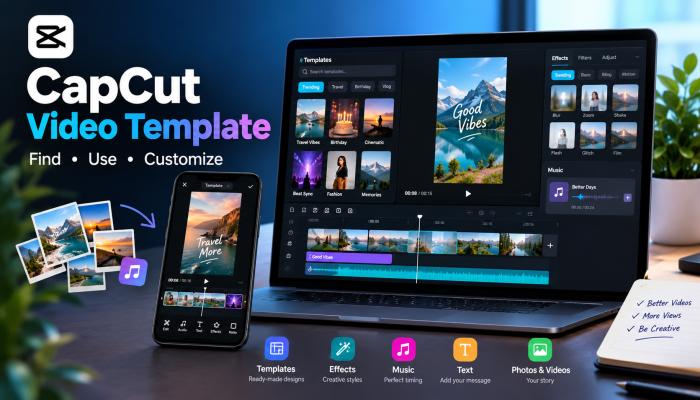
Creating a good short video does not always require hours of editing. A CapCut Video Template can give you a ready-made structure that you can adapt with your own photos, videos, text, effects, and other creative elements.
Instead of building a timeline from zero, you can start with a prepared design. Depending on the template, it may already contain transitions, animations, effects, text styles, music, timing, and other editing elements. CapCut describes templates as reusable editing designs that users can apply to their own media.
This makes templates useful for beginners, social media creators, students, businesses, and anyone who wants to produce short-form videos more efficiently.
However, using a template does not automatically make a video good. The template is only the framework. Your footage, storytelling, text, timing, and creative choices still matter.
This complete guide explains what CapCut templates are, how they work, where to find them, how to use them, how to customize them, and what to do when a template is missing or does not work.
Table of Contents
What Is a CapCut Video Template?
A CapCut Video Template is a pre-designed video editing project that can be reused with your own media.
Rather than creating every transition and effect manually, you begin with an existing editing structure. You then add or replace photos and video clips according to the template’s requirements.
A template may contain:
- Transitions
- Text animations
- Stickers
- Filters
- Visual effects
- Music or audio elements
- Clip timing
- Zoom and motion effects
- Overlays
- Other editing elements
CapCut explains that templates are not simply finished videos. They are reusable designs that other users can apply to their own content.
For example, imagine a template that contains eight media slots. Instead of designing eight transitions yourself, you can insert your own eight photos or clips into the available positions.
The result is a video based on the original template structure but populated with your own content.
How Does a CapCut Template Work?
The basic idea is simple.
A creator designs an editing structure and publishes it as a template. Another user can then apply that structure to personal media.
The process generally looks like this:
Choose a template → add your photos or videos → customize available elements → preview → export.
The exact experience depends on the template and the CapCut platform you are using.
Some templates may provide more customization than others. You may be able to replace clips, edit text, adjust certain effects, or change other elements. Some parts can remain fixed.
This is why it is important to preview a template before choosing your media.
Why Templates Save Time
Manual editing requires you to decide:
- Where each clip should appear
- When a transition should happen
- How long each clip should remain on screen
- Which effects to use
- How text should appear
- How the video should match the music
A template can handle much of that structure for you.
That is the main reason templates are useful. They reduce repetitive editing work while still allowing you to add your own content.
Why Are CapCut Templates Popular?
Short-form video has become an important format across social platforms. Creators regularly produce vertical videos for entertainment, education, personal updates, travel, celebrations, product content, and many other subjects.
Templates fit this workflow because they can make the editing process faster.
They are especially helpful when someone:
- Has little editing experience
- Needs to create videos quickly
- Wants ideas for transitions
- Creates similar types of videos regularly
- Wants to experiment with a new editing style
- Does not want to build every project from scratch
CapCut itself maintains template collections and trend-oriented template pages, showing how templates are used as a starting point for different short-form video styles.
Still, popularity should not be the only selection factor.
A template may be trending but completely wrong for your content.
A simple template that matches your message can often produce a better result than an impressive-looking template that does not fit.
Main Types of CapCut Video Templates
There is no single type of CapCut template. Different designs serve different purposes.
1. Photo Templates
Photo templates turn a collection of pictures into a short video.
They can be useful for:
- Birthday memories
- Travel photos
- Family moments
- School events
- Friendship posts
- Personal stories
- Photo collections
They are often easier for beginners because you only need to select suitable images.
2. Beat-Sync Templates
Beat-based templates are designed around music timing.
Photos or clips may change at specific points in the soundtrack. This can create a fast and energetic editing style.
These templates can work well when the audio is an important part of the video.
3. Transition Templates
Transition-focused templates emphasize movement between clips.
They may use:
- Zoom transitions
- Camera movement
- Flash effects
- Blur transitions
- Motion effects
- Quick cuts
These styles can be useful for travel, fashion, sports, and creative edits.
4. Slow-Motion Templates
Some templates are designed around slower footage and cinematic pacing.
They can work well with:
- Travel scenes
- Nature footage
- Portrait clips
- Emotional moments
- Cinematic shots
The quality of the original footage matters particularly here.
5. Birthday and Celebration Templates
These templates often combine photos, text, music, and decorative effects.
They can be used for birthdays, anniversaries, festivals, graduations, and other occasions.
6. Travel Templates
Travel templates commonly combine multiple short clips or photos into a quick visual story.
A good travel template should support the story rather than distract from the location.
7. Social Media Templates
Some designs are made specifically for short vertical content.
When choosing one, consider the platform, aspect ratio, text placement, duration, and the amount of information you need to communicate.
How to Find a CapCut Video Template
Finding a template depends on the version and platform you use.
On supported CapCut versions, you can browse the Templates section and search for designs using keywords. CapCut’s current help documentation also explains that templates can be discovered through its supported template features and, in some workflows, through TikTok template links.
Search by Content Type
Instead of searching only for “trending template,” use a keyword related to your actual project.
For example:
- Travel video template
- Birthday video template
- Photo slideshow template
- Fashion edit template
- Wedding video template
- YouTube Shorts template
- Reels template
- Slow-motion template
This makes it easier to find a design that matches your purpose.
Search by Editing Style
You can also search based on the effect you want.
Examples include:
- Slow motion
- Beat sync
- Cinematic
- Zoom
- Blur
- Transition
- Lyrics
- Photo edit
CapCut’s official template resources show search and category-based discovery as part of the template workflow.
How to Use a CapCut Video Template
The exact interface can change, but the basic process is straightforward.
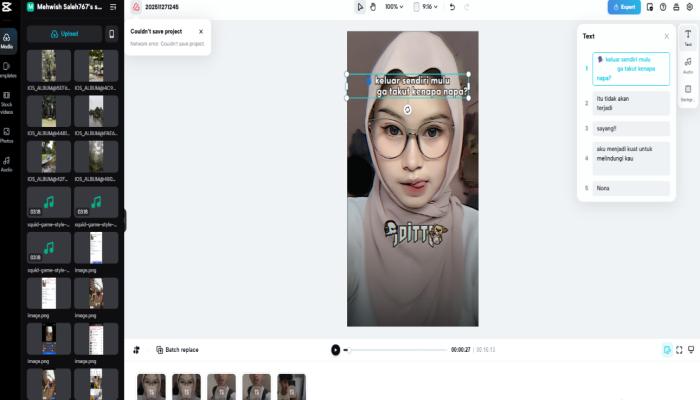
Step 1: Open CapCut
Launch CapCut on a supported device or platform.
On mobile, the Templates section may appear directly in the app. If you do not see it, availability may depend on your region, app version, or device.
Step 2: Find a Template
Browse the available designs or search using keywords.
Look at:
- Number of required clips
- Duration
- Visual style
- Music
- Text
- Transitions
- Overall pacing
Step 3: Preview the Template
Do not select the first design you see.
Watch the preview and ask:
- Does the pacing fit my footage?
- Do I have enough photos or clips?
- Does the style match my topic?
- Is the text readable?
- Are the transitions too aggressive?
Step 4: Select “Use Template”
When the template supports the feature, select the option to use it.
CapCut’s current mobile instructions describe selecting a template, choosing the required photos or videos, previewing the result, making available edits, and exporting the finished video.
Step 5: Add Your Photos or Videos
Choose the media that fits each available slot.
Try to match the original template’s pacing.
For a fast template, short clips and clear photos may work better. For a slower template, longer clips may produce a more natural result.
Step 6: Review the Video
Watch the complete video before exporting.
Look for:
- Cropped faces
- Important objects hidden by text
- Poor-quality clips
- Incorrect clip order
- Unreadable captions
- Unwanted effects
- Audio problems
Step 7: Customize the Video
If the template allows it, change text, replace media, adjust available effects, or make other edits.
The amount of control varies between templates.
Step 8: Export
Once the video looks correct, export it using settings appropriate for your intended platform.
CapCut’s current resources describe exporting after customization and selecting appropriate resolution and aspect-ratio settings where available.
How to Add Photos and Videos to a Template
Adding your own media is one of the most useful parts of templates.
But simply selecting random images can produce a weak result.
Choose Media That Matches the Timing
If the template changes images rapidly, use photos that are easy to understand at a glance.
For slower sections, choose clips with enough visual information to hold attention.
Use High-Quality Original Files
A template cannot completely fix poor source material.
If your original photo is blurry or heavily compressed, the final video may still look weak.
Whenever possible, use:
- Sharp photos
- Stable video clips
- Good lighting
- Properly framed subjects
- Original files rather than repeatedly compressed copies
Think About the Order
The order of your clips can affect the story.
For example, a travel video may work better when arranged as:
Arrival → Location → Activity → Highlight → Ending
The template provides the structure, but you provide the story.
How to Customize a CapCut Video Template
One common mistake is assuming that using a template means leaving everything unchanged.
Customization is important because it makes the video more personal.
Depending on the template, you may be able to change:
- Photos
- Videos
- Text
- Captions
- Some effects
- Stickers
- Audio
- Certain visual elements
CapCut’s template guidance notes that templates can be edited, although the original creator’s media may be protected.
Change the Text
Replace generic text with information that relates to your video.
Keep captions short and readable.
Avoid putting large blocks of text over busy footage.
Replace Weak Clips
Do not feel obligated to use every clip you selected initially.
If a particular image looks awkward after cropping, replace it.
Avoid Too Many Effects
A template may contain multiple effects because it was designed to demonstrate a particular style.
Your video does not necessarily need every effect.
If an effect makes the subject harder to see, remove or reduce it when the editing options allow.
Add Your Own Style
Even a small change can make a template feel less generic.
You can use:
- Your own footage
- Personal captions
- A consistent text style
- A different clip sequence
- Your own storytelling approach
The goal is not simply to reproduce another creator’s video.
The template should support your idea.
CapCut Templates for Instagram Reels
CapCut templates can be useful for creating vertical short-form videos.
For Reels, pay attention to:
- Vertical framing
- Text placement
- Opening seconds
- Clip quality
- Video length
- Music
- Visual pacing
A template with fast transitions may work for an energetic fashion edit but may be unsuitable for an educational video.
For informational content, a cleaner design can make the message easier to understand.
Make the First Few Seconds Useful
A template can provide movement, but movement alone does not guarantee attention.
The opening should quickly communicate what the video is about.
For example:
Weak opening: Several unrelated transitions before the subject appears.
Better opening: The main subject appears immediately, followed by a clear visual or text hook.
CapCut Templates for YouTube Shorts
YouTube Shorts also benefit from clear vertical framing and fast visual communication.
However, the right template depends on the topic.
An educational Short may need:
- Clear text
- Simple transitions
- Good contrast
- Enough time to read captions
An entertainment edit may support faster transitions and more visual effects.
The important point is to choose the template according to the content.
CapCut Templates for Status Videos
Templates can also be used for short personal status videos.
Examples include:
- Birthday memories
- Travel moments
- Friendship videos
- Family photos
- Festival greetings
- Personal highlights
For these videos, simplicity is often enough.
You do not need a complicated transition every second.
A few strong photos with suitable timing can create a better result than dozens of effects.
CapCut Mobile vs Web vs Desktop Templates
One area that needs careful attention is platform support.
CapCut’s current documentation indicates that template functionality is not identical across mobile, web, and desktop. As of the company’s January 2026 guidance, mobile has the broadest template experience, while web and desktop have more limited functionality.
| Platform | Template experience | Best suited for |
|---|---|---|
| Mobile | Broad template support | Finding and using community templates |
| Web | More limited | Browser-based editing and supported templates |
| Desktop | More limited template ecosystem | Larger-screen editing and supported templates |
These capabilities can change as CapCut updates its products.
Therefore, if a tutorial from another website shows a button that you cannot find, the problem may not be your device.
It could be related to the current app version, platform, account, or region.
Why Is the CapCut Template Button Missing?
This is one of the most common questions from users.
There are several possible reasons.
Region Restrictions
Some templates and features may not be available everywhere.
CapCut states that template and effect availability can vary by region because of distribution, licensing, and other factors.
App Version
An outdated version may not contain newer features.
Updating the app can help when a feature is missing.
Platform Differences
A template available on mobile may not be available in the same way on desktop or web.
This is particularly important because CapCut’s template systems are not identical across platforms.
Internet Connection
Some templates are loaded online.
A weak connection can prevent template content from appearing correctly. CapCut lists connectivity as one possible reason for missing templates.
Account Requirements
Certain template features may require users to sign in.
If a feature is unavailable, check whether you are logged into the appropriate CapCut account.
Also Read: Rupee Symbol (₹): History, Meaning, and How to Type It Anywhere
What to Do When a CapCut Template Is Not Working
If a template does not work, try these basic checks:
- Confirm that your internet connection is stable.
- Update CapCut to the latest available version.
- Check whether the template is supported on your device.
- Make sure you selected the required number of photos or clips.
- Check whether the template is available in your region.
- Restart the app.
- Try another template to determine whether the issue is template-specific.
If other templates work normally but one particular design does not, the problem may be associated with that template rather than your entire installation.
How to Choose a Good CapCut Video Template
The most popular template is not necessarily the best template.
Use these criteria instead.
Match the Template to Your Content
A travel video should look like a travel video.
A business video may need a cleaner design.
A personal birthday video can use a more emotional style.
Check the Number of Media Slots
Do not select a template that requires 20 clips when you only have five good clips.
Consider the Pacing
Fast transitions can become tiring when overused.
Slow templates can feel boring if the content does not provide enough visual interest.
Check Text Placement
Make sure important parts of your footage will not be covered by captions or decorative elements.
Consider Originality
If thousands of creators are using exactly the same template, your video may look similar to many others.
Using a template as a starting point and adding original content can help reduce that problem.
Common Mistakes When Using CapCut Templates
Choosing a Template Only Because It Is Trending
Trends change quickly.
A popular design may not fit your audience or message.
Using Low-Quality Footage
A sophisticated template cannot turn a blurry source clip into high-quality footage.
Adding Too Many Effects
More effects do not always mean a better video.
Ignoring the Story
Transitions should support the story.
They should not become the entire story.
Forgetting to Preview the Final Result
Always watch the finished video before posting it.
A template can crop your media differently than expected.
Advantages of CapCut Video Templates
Templates offer several practical benefits.
Faster Editing
You start with an existing structure instead of building every element manually.
Beginner-Friendly
You do not need advanced editing knowledge to experiment with many template styles.
Creative Inspiration
Templates can show you how timing, movement, text, and music can work together.
Consistent Structure
If you regularly create similar content, templates can help maintain a repeatable workflow.
Easy Experimentation
You can test different visual styles without rebuilding an entire project from zero.
Limitations of CapCut Templates
Templates are useful, but they are not perfect.
Limited Customization
Some templates do not allow every element to be changed.
Repetitive Content
If too many people use the same design, videos can start to look alike.
Availability Differences
A template visible to another user may not appear on your device because of platform or regional differences.
Template Does Not Replace Creativity
The quality of your footage and idea still matters.
Trends Become Outdated
A design that looks current today may feel old later.
CapCut Template vs Manual Editing
| Feature | CapCut Template | Manual Editing |
|---|---|---|
| Setup time | Usually faster | Usually slower |
| Beginner friendly | High | Depends on skill |
| Creative control | Depends on template | Very high |
| Transitions | Often pre-designed | Created manually |
| Timing | Often prepared | Controlled manually |
| Originality | May be lower | Usually higher |
| Learning value | Good for understanding structures | Strong for developing editing skills |
| Best use | Fast social content | Full creative projects |
Neither approach is always better.
Templates are useful when speed is important.
Manual editing is better when you need precise control over every detail.
Many creators can combine both approaches.
For example, you can start with a template to understand the structure and then recreate or modify the concept manually.
Are CapCut Video Templates Free?
Availability depends on the specific template and current CapCut offering.
Some templates are available without an additional charge, while other content may have different requirements.
CapCut’s current documentation also states that paid templates are supported through the mobile app, while web and desktop do not provide the same paid-template purchasing experience.
Because features can change, users should check the current information displayed inside the app before assuming that every template is free.
Can You Create Your Own CapCut Template?
Yes, but publishing templates is not necessarily available to every account.
CapCut says that creators with access to the Creator Center can create and publish templates. The process involves creating a project, editing it, and choosing the option to publish it as a template when eligible.
This can be useful for creators who want other users to reuse their editing style.
Before publishing, creators should also pay attention to music and other content rights.
Copyright and Template Safety
Using a template does not mean every piece of content is automatically free from copyright concerns.
Be careful with:
- Music
- Photos
- Video clips
- Logos
- Brand assets
- Third-party graphics
If you are publishing content commercially, check whether you have the appropriate rights to use the materials.
CapCut specifically advises creators to check soundtrack copyright compliance when publishing templates.
A template can provide an editing structure, but responsibility for your uploaded content still matters.
Tips for Better Results With CapCut Templates
Follow these simple principles:
Start With Good Footage
Better source material usually produces a better final video.
Keep the Story Clear
Ask what the viewer should understand after watching.
Use Text Carefully
Keep important text short and readable.
Match the Music
If the template depends heavily on beat synchronization, choose media that works with its timing.
Do Not Overuse Trends
A trend can help your content feel current, but originality gives it a longer life.
Preview Before Exporting
Always watch the complete video.
Keep a Consistent Style
If you are building a personal brand, try to maintain recognizable visual elements across your content.
Is a CapCut Video Template Worth Using?
For many beginners and short-form creators, yes.
The biggest advantage is efficiency.
A template can reduce the amount of repetitive work required to produce a polished-looking short video. It can also help beginners understand how transitions, timing, text, and effects work together.
However, templates are not a replacement for editing skills.
If you use the same popular design repeatedly, your content may become predictable. If the original footage is poor, the template cannot completely solve the problem.
The strongest approach is to treat a template as a starting point rather than the finished creative idea.
Use the structure, then add your own footage, message, pacing, and personality.
Frequently Asked Questions
What is a CapCut Video Template?
A CapCut Video Template is a pre-designed editing structure that can be reused with your own photos or videos. It may contain transitions, effects, text, animations, stickers, and other editing elements.
How do I use a CapCut template?
Open a supported CapCut version, find a template, select it, add the required photos or videos, customize available elements, preview the result, and export the finished video. The exact steps vary by platform.
Why can’t I see the Template button in CapCut?
The Template button may be missing because of your app version, region, device, account, or platform. CapCut confirms that template availability can differ between users and regions.
Can I use CapCut templates on a computer?
Some template functionality is available on web and desktop, but the experience is more limited than on mobile. CapCut’s current documentation identifies mobile as the platform with the broadest template support.
Can I add my own photos to a CapCut template?
Yes. Templates are designed to allow users to apply the prepared editing structure to their own photos or video clips, although the exact number of required media files depends on the template.
Are all CapCut templates free?
No. Template availability and pricing can vary. CapCut’s current documentation says paid templates are supported through the mobile app.
Can I customize a CapCut template?
Yes, although customization depends on the individual template. You may be able to replace media, edit text, change some effects, or make other adjustments.
Do CapCut templates work for Instagram Reels?
They can be useful for creating vertical short-form videos. Choose a template that matches your content, framing, pacing, and intended audience.
Can CapCut templates be used for YouTube Shorts?
Yes. Templates can provide a fast starting point for Shorts, especially when the design fits vertical video and the subject of the content.
Should I use a trending template for every video?
No. Trends can provide inspiration, but using the same template repeatedly can make your content look repetitive. Choose a design because it supports your content, not simply because it is popular.
Final Thoughts
A CapCut Video Template can simplify the video creation process by providing a ready-made editing structure.
For beginners, it reduces the need to understand every editing function before creating a short video. For experienced creators, it can speed up repetitive work and provide new ideas.
But the template itself is not what makes a video memorable.
Your footage, story, text, timing, and creative decisions matter just as much.
The best results usually come from using templates as a foundation and then making the final video your own.
Before choosing a template, check its required media, pacing, style, and compatibility with your platform. If a template is missing, remember that CapCut’s current features can vary by region, device, app version, and platform.
In short, templates are most valuable when they save you time without replacing your creativity.